
Jupyter Notebook
Interactive Python notebooks in your browser: code, notes, and charts in one document, with the scientific stack preinstalled.
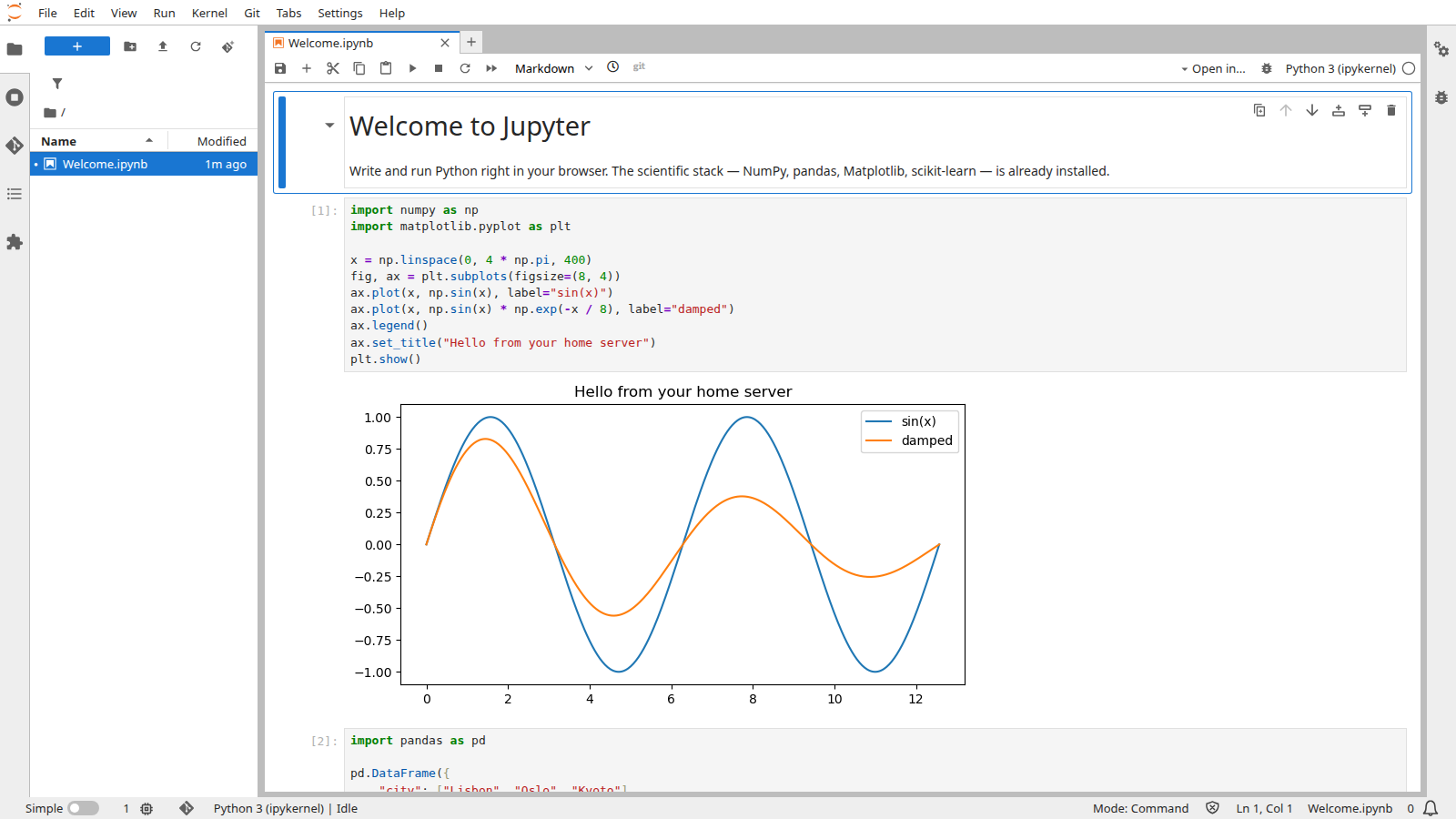
Overview
Jupyter Notebook lets you write and run Python in your browser: live code, notes, and charts in one document. It's built on the Jupyter team's scipy image, so the scientific stack (NumPy, pandas, Matplotlib, scikit-learn, and more) is preinstalled and ready to import, with nothing to set up before your first chart.
Features
- Live Python code cells alongside notes and rendered charts in one document
- The scipy stack (NumPy, pandas, Matplotlib, scikit-learn, and more) preinstalled and ready to import
- Notebooks saved as ordinary files in your Documents folder, not buried in app state
- Install extra Python packages yourself with
pip install --user
Setting up
On the login screen, enter the one-time setup token and choose a password. That password is how you sign in from now on, and it works straight away:
- Setup token:
moose-setup - Password: choose your own on this screen
Then restart the app once: open its page in Settings and use Stop, then Start. Your password already works without this; the restart's only job is to switch off the moose-setup setup token, which otherwise stays valid as a second way in until the app is next restarted (any later update or reboot also closes it).
To change your password later, open a Terminal inside Jupyter, run jupyter server password, and restart the app the same way.
Good to know
- Notebooks live in your Documents folder, in a subfolder you choose when you install ("Notebooks" by default). They are ordinary files on your drive: they stay yours, and they stay put if you uninstall the app.
- Install it just for yourself. Jupyter has no user accounts of its own, so a single household copy would mean everyone shares one password and one terminal into the same Notebooks folder. Install a personal copy per person instead.
pip install --useris the supported way to add packages, and it survives restarts and updates.conda install,mamba install, and a plainpip install(without--user) do not work here: the app runs as a locked-down user that cannot change the preinstalled environment. The shipped scipy stack pluspip install --usercovers everyday data work.- No
sudoorapt installinside the sandbox. - No GPU acceleration, so heavy ML training is out of scope. This is built for interactive, CPU-based data work.